
Introduction
What is GearConnect?
What is GearConnect?
GearConnect is a browser-based drawing tool for AV and live events. You place equipment from a shared library, draw connections port to port, and GearConnect turns the drawing into gear, port and connection reports.
Every device and cable in a drawing is stored as data, so the drawing and reports stay in sync. Change one and the other updates. GearConnect is built by GearConnect Entertainment Software Inc, independently of Advatek.
Why it suits pixel projects
Why it suits pixel projects
Pixel systems have a lot of connections to track. One controller can feed dozens of pixel runs, and long-range systems add transmitters and receivers in between. Drawn by hand, that gets messy fast. GearConnect keeps it manageable.
- Port-level drawings. Every output, receiver link and network connection goes to the exact port.
- Tidy layouts. Connections route themselves around devices, so drawings stay readable as the system changes.
- Reports for installers. Gear, port and connection lists come straight from the drawing. Export them as PDF, CSV or Excel.
- The whole system in one drawing. PixLite® sits alongside consoles, media servers and switches from other brands.
What the integration includes
We’ve built reusable PixLite® Mk3 blocks for A-Series and E-Series controllers, T8-S and T16X-S transmitters, and compatible long-range receivers. Standard and expanded output variants reflect different ways of using the hardware, with labelled ports and product notes to help you choose the right block for the job.
We’ve also created editable full-range demonstration projects for GearConnect V1 and V2, with example layouts showing the blocks, output arrangements and long-range connections. Use them as a starting point, then adapt the equipment and labels to your installation. This helps you explain a proposed system, trace the route from the control source to each pixel run, and prepare consistent drawings and connection reports for installers and handover without rebuilding the same device details for every project.
This integration supports planning and documentation. It does not discover, configure or control PixLite® hardware.
Using PixLite® blocks with GearConnect
Choose your device
Create or open a GearConnect project and add the appropriate Advatek blocks from the Library Browser. Match each block to the hardware and intended output mode, then give devices clear labels that correspond to the installation.
The demo provides example layouts. Adapt device quantities and receiver arrangements to your project, following the relevant PixLite® manuals.
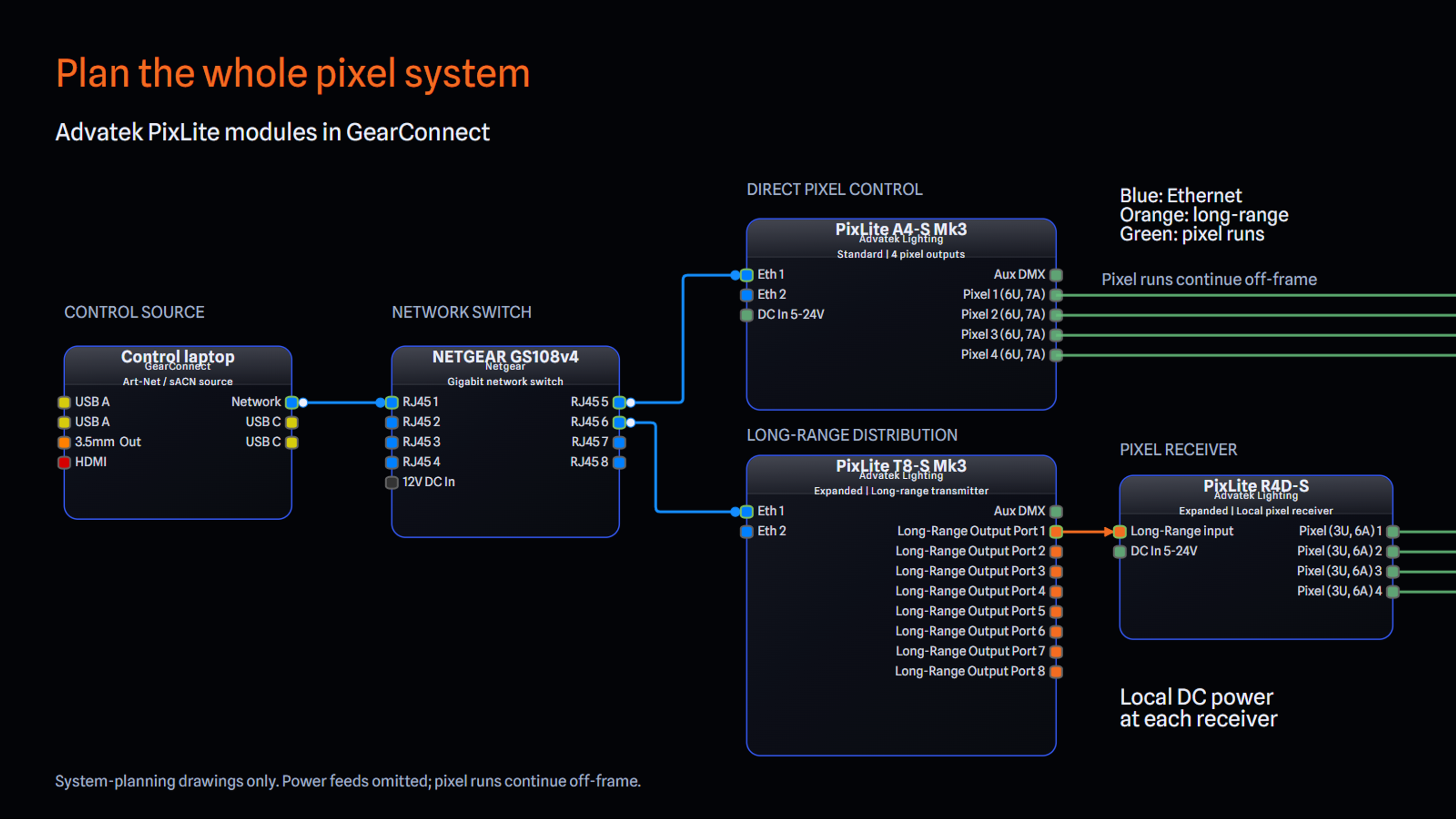
Advatek Modules in GearConnect
Connect the system
Add your control source, network equipment and pixel fixtures, then drag between ports to draw the planned connections.
For long-range systems, show transmitter-to-receiver links separately from receiver-to-pixel runs. The demo uses orange for long-range links, which are not Ethernet connections.
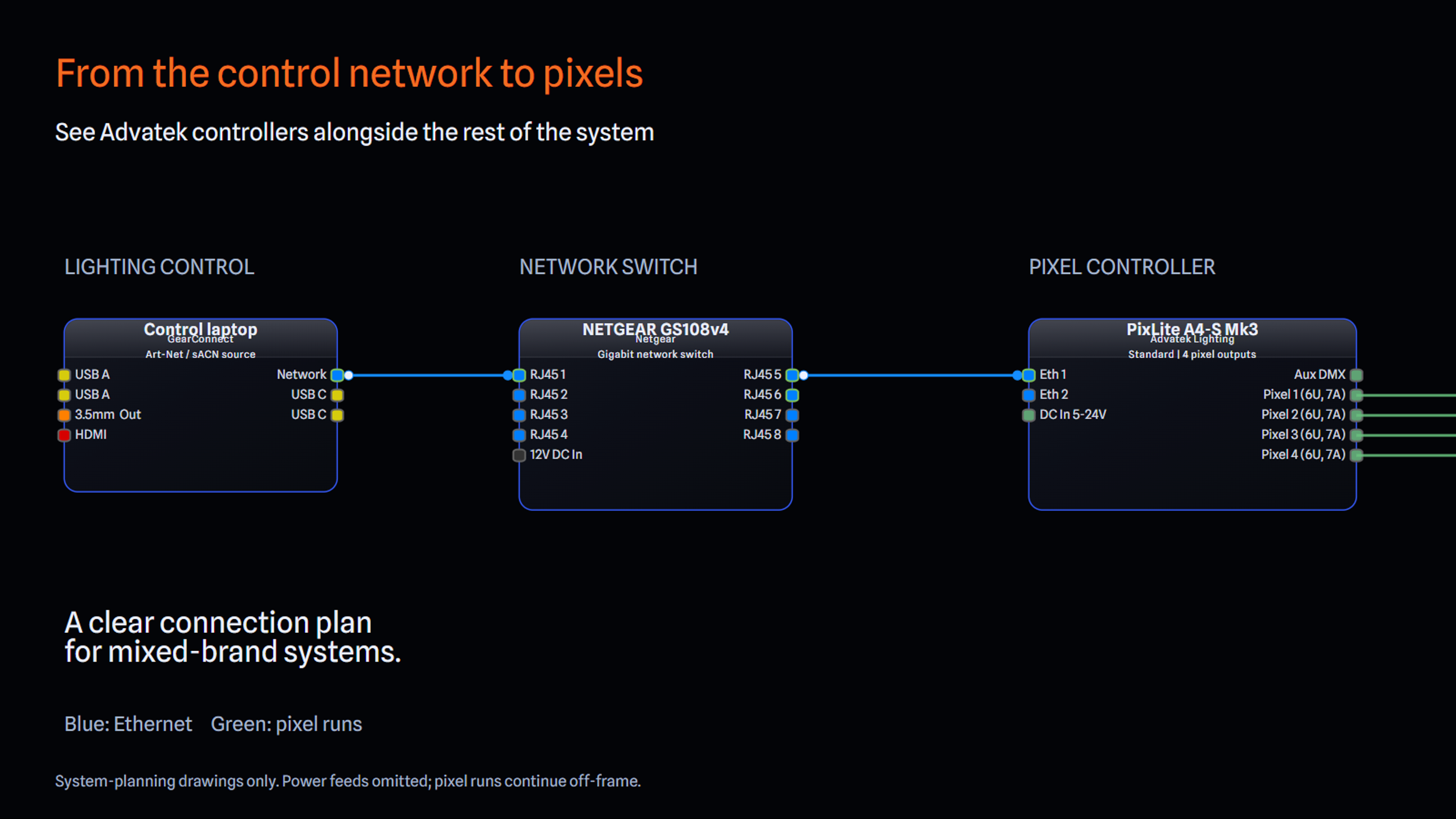
Network to Pixels
Document the installation
Add output destinations, cable identifiers, receiver locations and power details. Identify shared fuse pairings where applicable, including expanded A4-S outputs.
GearConnect checks connections against its library port data. Confirm hardware compatibility, wiring, pixel protocol and power loading against Advatek documentation.
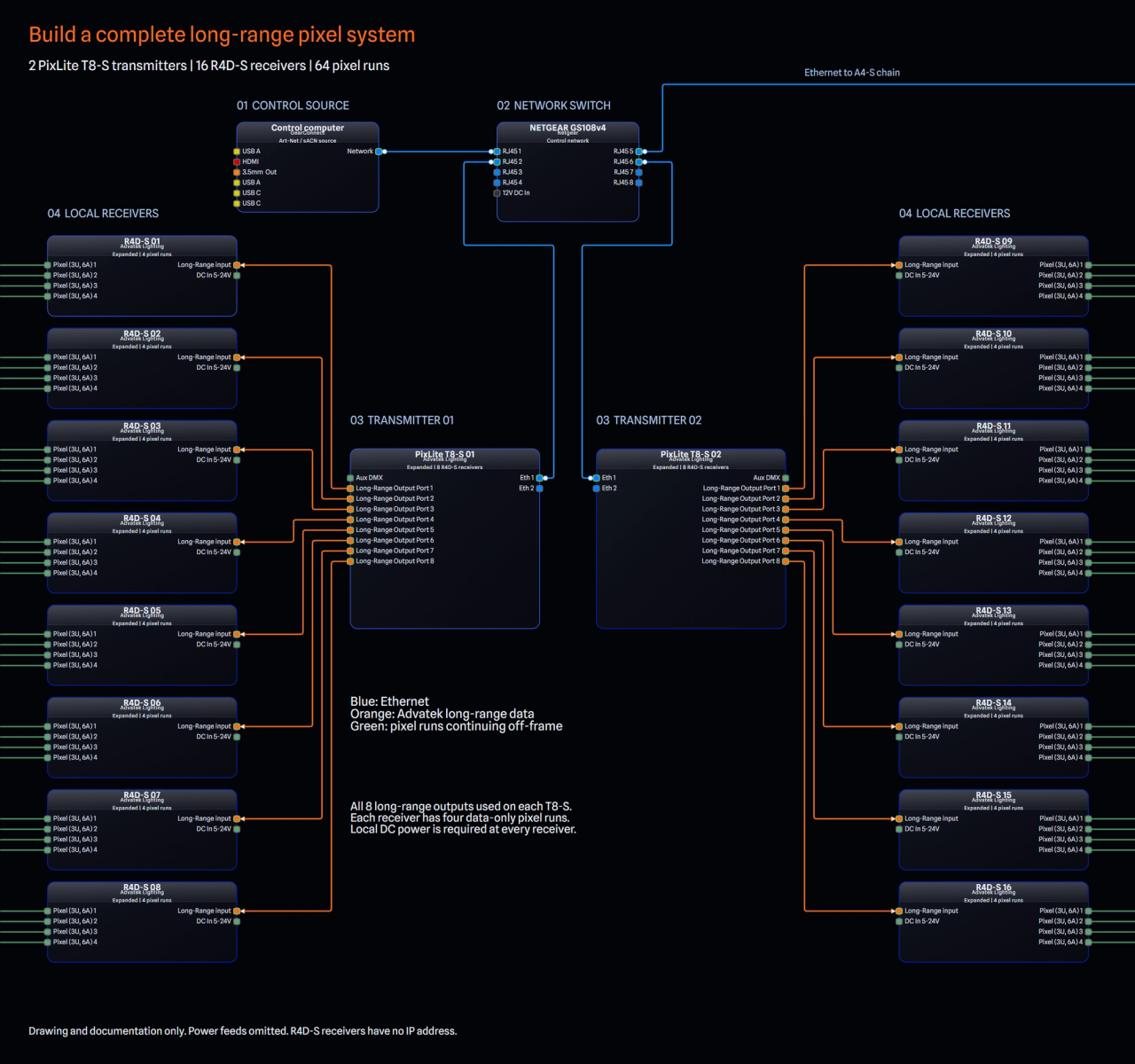
An Example PixLite® T8-S Mk3 System
Review and hand over
Trace each connection from source to pixels. Use the Gear, Ports and Connections reports to review the recorded equipment and patch information, then export the drawings and reports required by the installation team.
Configure physical controllers using Advatek Assistant 3 or the PixLite® management interface. Update the drawing after on-site changes and retain it with the final controller configuration and project patch.
Get started
Download the demo matching your GearConnect version: V1 or V2. Importing projects requires a Pro or Team plan, or a free trial.
Start using PixLite® with GearConnect
More useful links
- GearConnect platform
- GearConnect Quick Guide
- GearConnect reports and export options
- PixLite model user manuals
- PixLite Mk3 management guide
GearConnect is independently developed and licensed. Features and export options depend on your plan
FAQs
Does it configure my PixLite® hardware?
Does it configure my PixLite® hardware?
No. The blocks are for planning and documentation only. They don’t discover, configure or control hardware. Use Advatek Assistant 3 or the PixLite® management interface for that.
Standard or Expanded block?
Standard or Expanded block?
Pick the variant that matches how the controller will be set up. Each block’s product notes explain the output arrangement it represents.
Which GearConnect plan do I need?
Which GearConnect plan do I need?
The blocks are in the default library. Importing the demo projects needs a Pro or Team plan, or a free trial.